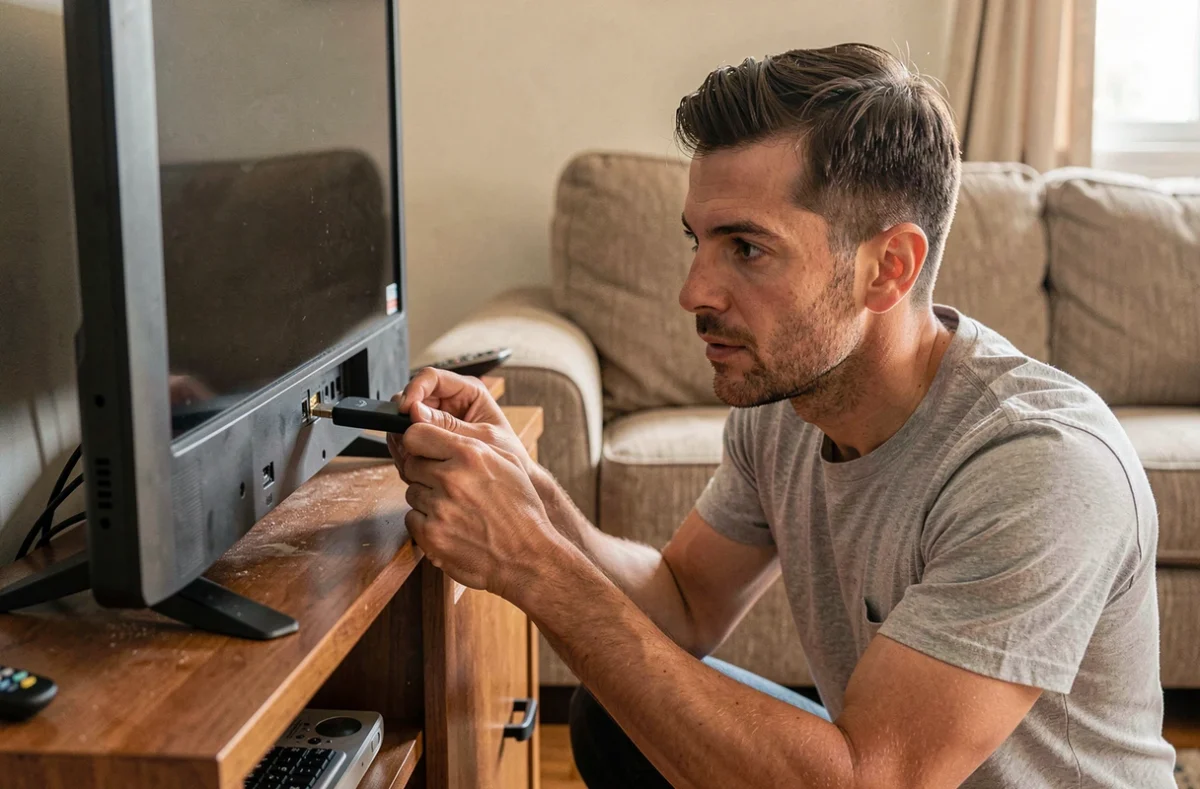
The Amazon Fire TV Stick is designed to work with an internet connection, and nearly all of its applications require network access. When home Wi-Fi is unavailable (outage, travel, hotel without reliable network), the stick is not rendered useless. Several methods allow it to connect through other means, each with its own constraints.
Ethernet Adapter for Fire Stick: Wired Connection as an Alternative to Wi-Fi
The least known solution remains the wired network connection. The Fire TV Stick does not have a built-in Ethernet port, but Amazon and third-party manufacturers offer adapters that plug into the power port of the stick.
The main point of caution concerns the compatibility between the adapter and the model of Fire Stick. Older generations use a micro-USB connector, while the second-generation Fire TV Stick HD works with a USB-C port. A micro-USB adapter will not work on a USB-C model, and vice versa. Buying an adapter labeled “compatible with Fire Stick” without checking the type of connector can lead to an unusable accessory.
Several guides detail the steps to connect a Fire Stick without Wi-Fi via an Ethernet adapter, a particularly stable option for streaming. Compatible adapters are generally limited to 100 Mb/s, which is more than sufficient for high-definition streaming.
The advantage of a wired connection goes beyond the mere absence of Wi-Fi. In a home where the router is far from the television, the Ethernet cable eliminates issues of weak signal, intermittent drops, and latency. For users facing recurring buffering, this option is worth exploring before changing boxes or plans.
Connection Sharing from a Phone: Mobile Hotspot and Fire TV Stick
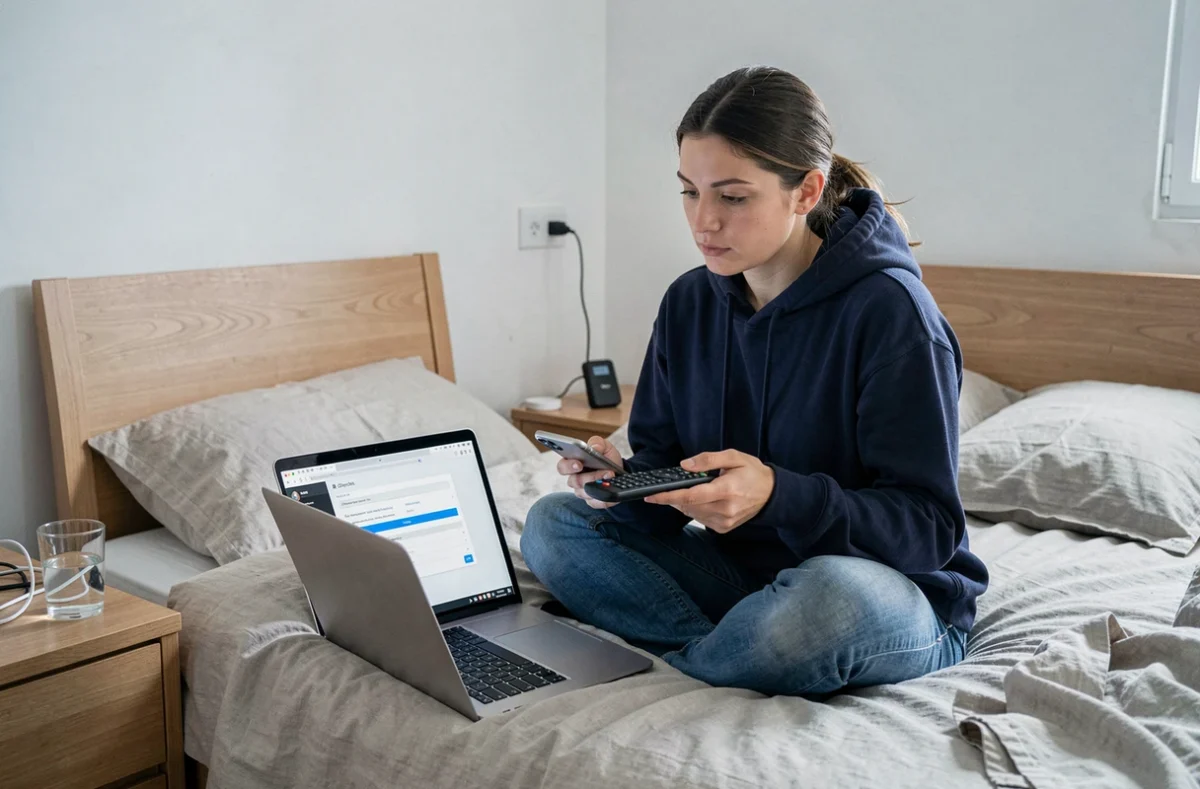
The most common method to use a Fire Stick without a fixed Wi-Fi network is to enable connection sharing (hotspot) on a smartphone. The Fire Stick then detects the phone as a regular Wi-Fi network and connects to it normally.
Setting Up the Hotspot on Android and iOS
On Android, the option is found in the connection settings under “Mobile Hotspot.” On iPhone, it is in “Personal Hotspot.” Once activated, the network appears in the Fire Stick’s Wi-Fi list, in the Settings menu then Network.
The process works, but the limitations of the hotspot differ significantly from those of home Wi-Fi. The data volume consumed by video streaming remains high. A few hours of high-definition content can represent several gigabytes. Checking the terms of your mobile plan before using this method long-term avoids unpleasant surprises at the end of the month.
Stability and Speed Depending on the Environment
The speed of a hotspot depends on the mobile network coverage at your location. In rural areas or in a hotel with thick walls, 4G may prove insufficient for smooth streaming. Reducing video quality in the streaming app settings (Netflix, Prime Video) helps limit bandwidth and data consumption.
Travel Router: An Overlooked Solution for Frequent Travelers
For those who travel regularly with their Fire Stick, a travel router is a more reliable alternative than a simple mobile hotspot. This small portable device creates a private Wi-Fi network that the Fire Stick connects to just once.
The travel router solves a recurring problem in hotels: captive portals. These login pages found in most establishments are not compatible with the Fire Stick, which does not have a web browser by default to validate access. The router connects to the captive portal from a phone or computer, then transparently redistributes the connection to the stick.
- The travel router connects once to the hotel network and then shares the connection with all your devices, including the Fire Stick
- Some models accept a SIM card, turning the router into a standalone 4G/5G hotspot without relying on a smartphone
- The Fire Stick remembers the router’s network, avoiding the need to reconfigure the connection with each move
This last feature makes a difference for regular travelers. Instead of reconfiguring the stick at each new hotel, the router creates a consistent network environment everywhere.
Offline Use of the Fire Stick: What Works Without an Internet Connection
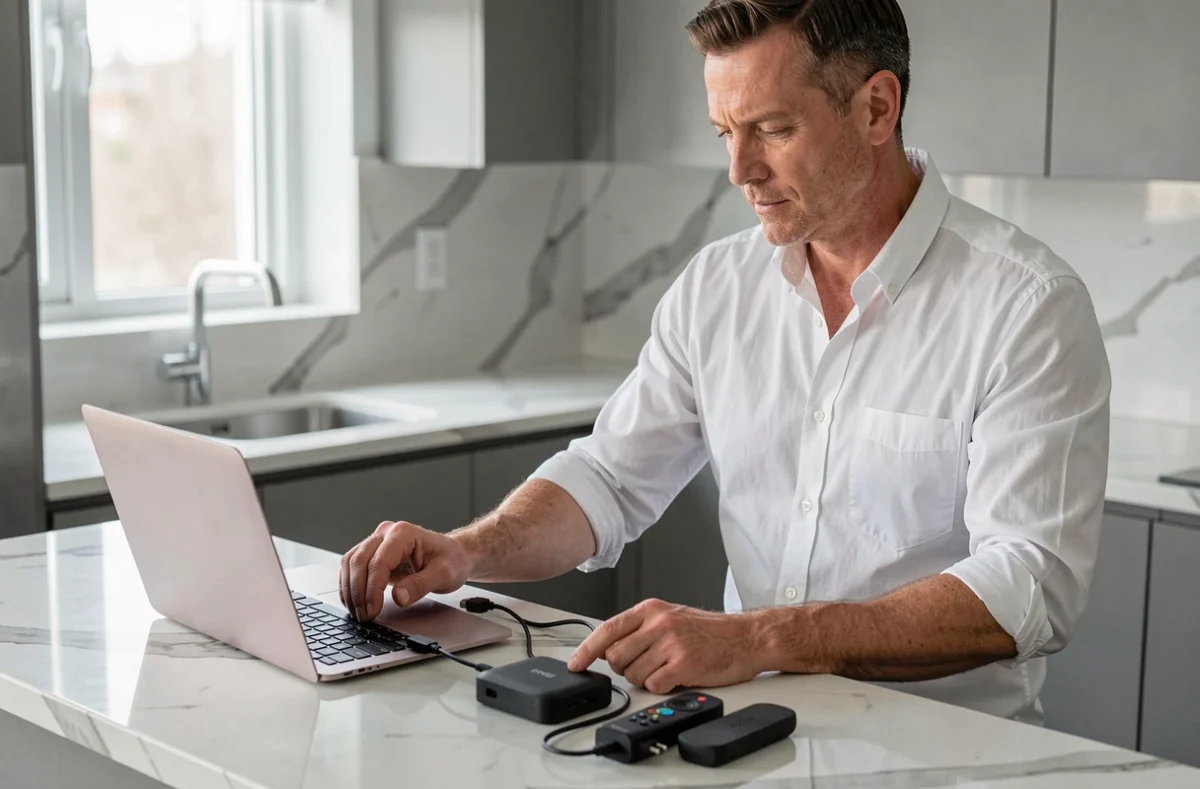
The possibilities of the Fire Stick without any internet connection are very limited. The majority of applications require network access to function, even to access content already installed on the device.
Some applications allow downloading content in advance on a mobile device, then streaming it to the television via the screen mirroring function. This approach partially circumvents the lack of connection but remains dependent on the compatibility between the phone and the stick for screen duplication.
Local media player applications like VLC, which can be installed on the Fire Stick, can read files stored on a USB drive (via an OTG adapter) or on a local media server. This use does not require internet access, only a local network.
- Screen mirroring from a phone works without internet, as long as both devices are on the same local network
- Video files stored on a USB drive are readable via third-party applications like VLC or Kodi
- The main interface of the Fire Stick will display loading errors without a connection, but navigation remains possible
The Fire TV Stick remains primarily an online streaming device. Offline uses exist, but they turn the stick into a simple local media player, which is not its primary purpose.
For regular mobile use, pairing the stick with a travel router or an appropriate mobile plan remains the most functional combination. The choice between these options mainly depends on the frequency of travel and the quality of the mobile network in the areas visited.